Record a gift
Record every gift your choir receives, so that each donor's history, your yearly totals and your receipts are right. Any admin can do this.
Gifts given by card on your Donate page are recorded by themselves; see Online gifts and refunds. To bring in many past gifts at once, see Import donors and past gifts.
Record a gift
There are two places to start. Both open the same form.
From the donor's page (quickest when you know who gave):
- In the admin panel, open Donors and press the donor.
- Press Record a gift.
From the Gifts tab:
- Open Donors, then the Gifts tab.
- Press Record a gift.
- Choose the donor under From. Someone new has to be added as a donor first.
Then:
- Fill in the form. Amount and Received on are required.
- Press Record Gift.
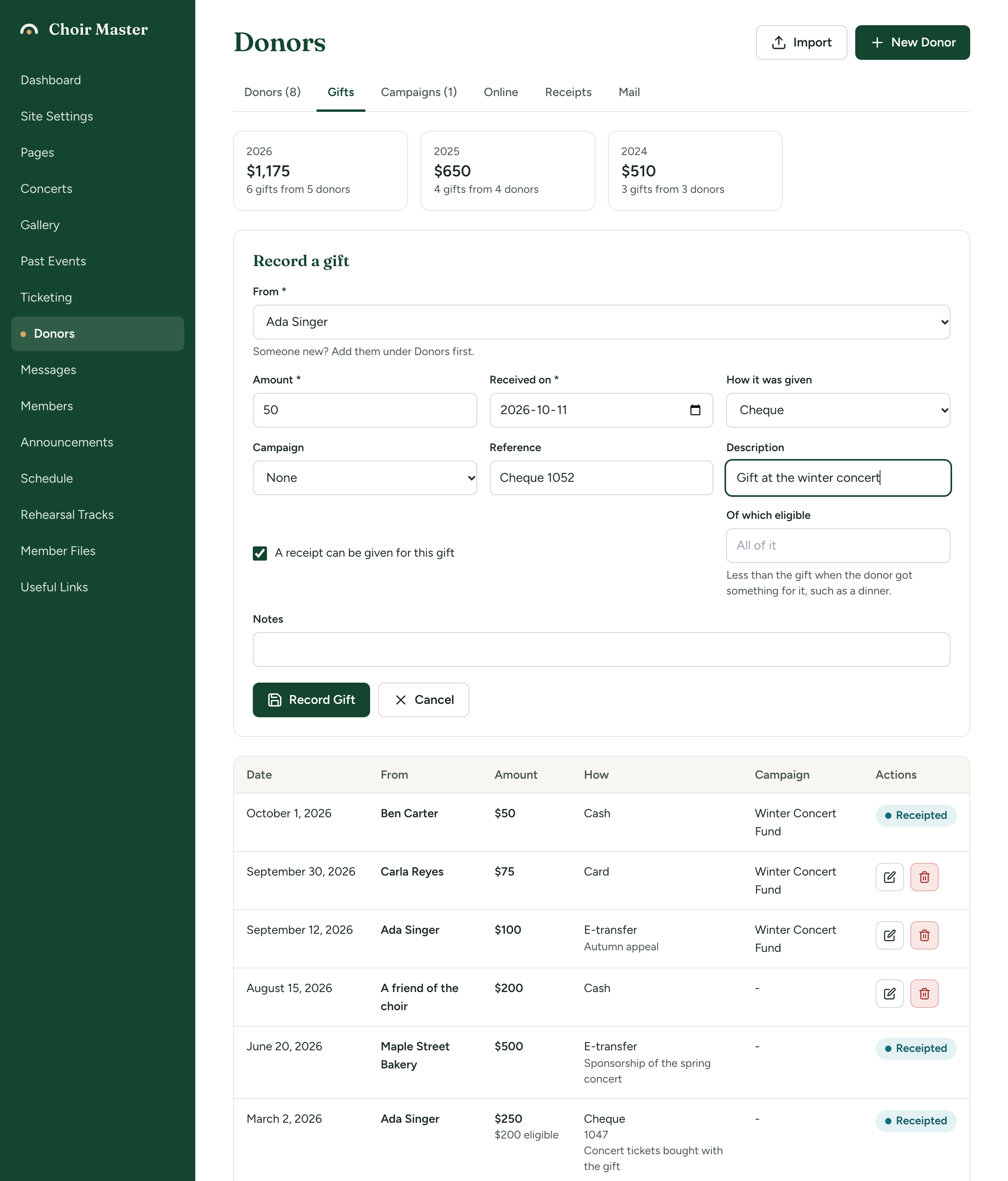
The fields
| Field | What it is for | To begin with |
|---|---|---|
| From | The donor. Shown only on the Gifts tab. Archived donors are not offered. | |
| Amount | The amount given, as a number such as 50 or 1,250.00, in your site's currency. For a gift in kind, its fair market value. | |
| Received on | The day your choir received it. | Today, where your choir is |
| How it was given | Cheque, Cash, E-transfer, Card, In kind or Other. | Cheque |
| Campaign | What it was given to. Archived campaigns are not offered. | None |
| Reference | Something to trace it by, such as a cheque number. Up to 200 characters. | |
| Description | A few words about the gift. When How it was given is In kind, this box is What was given: describe the item. Up to 500 characters. | |
| A receipt can be given for this gift | Untick it for a gift that must not go on a receipt. | Ticked |
| Of which eligible | Shown while the box above is ticked. The part of the gift a receipt can be given for. Leave it empty for all of it. | All of it |
| Notes | Anything else. Up to 1,000 characters. |
When to fill in "Of which eligible"
Fill it in when the donor got something in return for their gift, such as a dinner. For example, for $150 paid for a fundraising dinner worth $60, enter 150 as the Amount and 90 as Of which eligible.
When you later issue a receipt for such a gift, you are asked what the donor received. See Issue receipts.
Whether a gift is eligible for a receipt, and for how much, is your choir's decision to get right. The software records what you tell it.
Read the gift table
Gifts are listed on each donor's page and, all together, on the Gifts tab, newest first.
| Column | What it shows |
|---|---|
| Date | The day it was received. |
| From | The donor. On the Gifts tab only. |
| Amount | The amount, with any of the notes below under it. |
| How | How it was given, with the reference and description. |
| Campaign | The campaign, with any notes. |
| Actions | A pencil to edit and a bin to delete, or a label. |
Notes under the amount:
| Note | Meaning |
|---|---|
| "No receipt" | A receipt can be given for this gift is unticked. |
| "$90 eligible" | Only that part of the gift can go on a receipt. |
| "$20 refunded, $30 kept" | A gift given online that was partly refunded. It counts for what was kept. |
Labels in the Actions column:
| Label | Meaning |
|---|---|
| Receipted | A receipt has been issued for the gift. It is locked. |
| Refunded | A gift given online whose money all went back. It stays on record but counts for nothing in your totals. |
Change or delete a gift
- Change it. Press the pencil, change what you need, press Save Changes. The donor cannot be changed: delete the gift and record it again for the right donor.
- Delete it. Press the bin, then Delete.
A gift with a receipt is locked
A gift marked Receipted has no pencil or bin. It cannot be changed or deleted while its receipt stands, because the receipt says what the gift was.
To change it, cancel the receipt first: open the Receipts tab and press Cancel on that receipt. The gift can then be edited, and a new receipt issued. See How to change a gift that already has a receipt.
If you ever see the message "A receipt has been issued for this gift, so it cannot be changed. Void the receipt first.", "void" means the same thing: the button is Cancel, on the Receipts tab.
If something goes wrong
| Message | What to do |
|---|---|
| "Choose who the gift is from" | Choose a donor under From. |
| "Enter the amount as a number, such as 50 or 1,250.00" | Type the amount with at most two decimal places. It must be more than zero. |
| "Enter the date it was received, as 2026-03-15 or 15 March 2026" | Choose a date in Received on. |
| "Enter the amount a receipt can be given for as a number, or leave it empty for the whole gift" | Correct Of which eligible, or clear it. |
| "The amount a receipt can be given for is between nothing and the whole gift" | Of which eligible cannot be more than the Amount. |
| "That campaign is not on the list any more" | The campaign was deleted. Choose another, or None. |
| Record a gift on the Gifts tab cannot be pressed | You have no donors yet. Add one first. |