Add and look after donors
A donor is a person or an organisation that gives to your choir. Each has a page of their own with their details and every gift they have made. Any admin can add and change donors.
To bring in many donors at once from a spreadsheet, see Import donors and past gifts.
Add a donor
- In the admin panel, open Donors.
- Press New Donor at the top of the page.
- Choose the kind of donor: A person or An organisation.
- Fill in the form. Only the name is required.
- Press Add Donor.
The new donor's page opens, ready for you to record a gift.
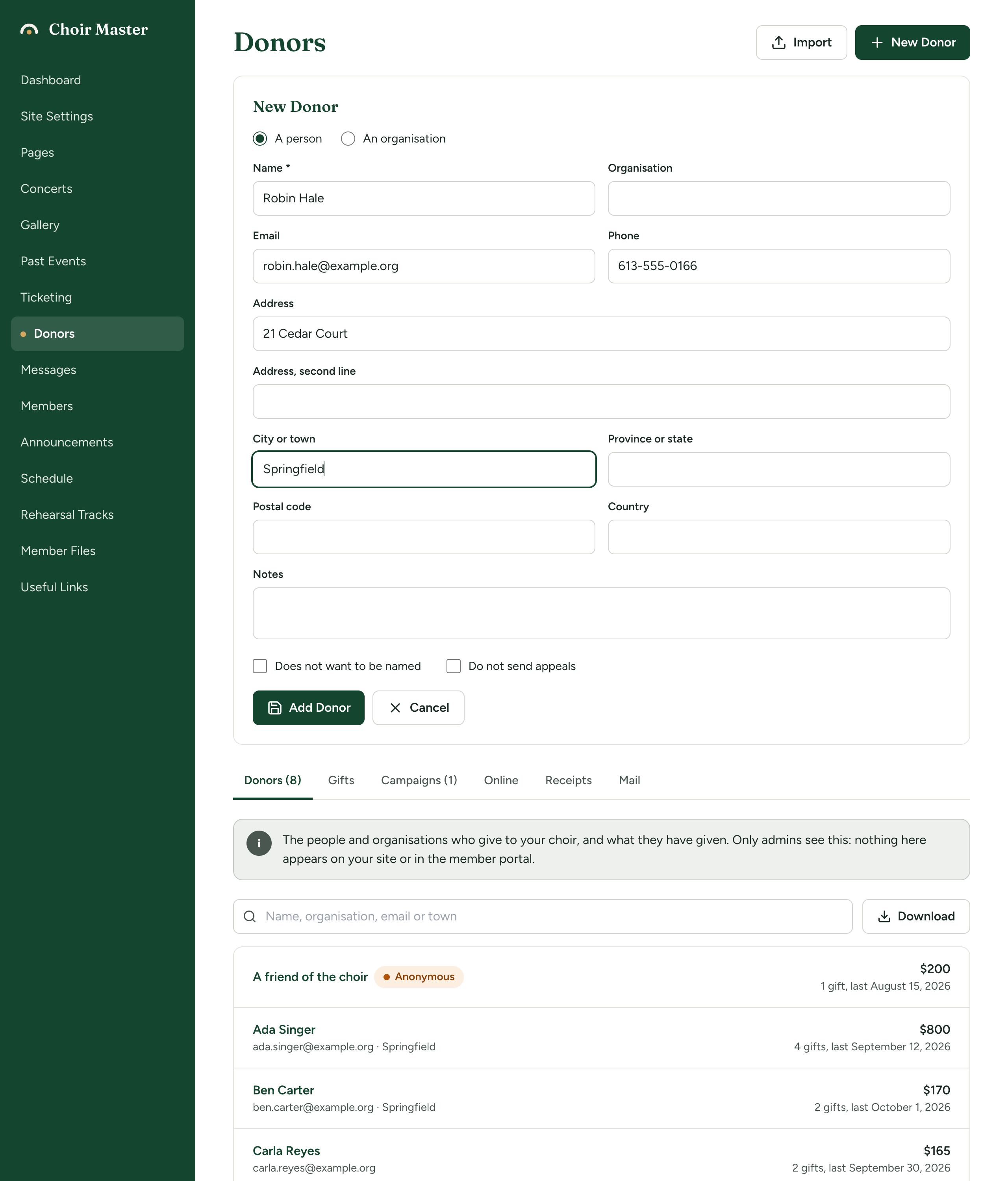
The fields
| Field | What it is for | Limit |
|---|---|---|
| Name | The person's name. Required for a person. For an organisation this box is Contact name: the person you deal with there. | 200 characters |
| Organisation | The organisation's name. Required for an organisation, unless you give a contact name. Optional for a person, for example their employer. | 200 characters |
| Used when you email your donors, and to match gifts given online. | ||
| Phone | 40 characters | |
| Address and Address, second line | The postal address. An official receipt cannot be issued without an address. | 200 characters each |
| City or town | Also needed for an official receipt. | 100 characters |
| Province or state | 100 characters | |
| Postal code | 20 characters | |
| Country | 100 characters | |
| Notes | Anything your choir wants to remember. Only admins see it. | 2,000 characters |
For an organisation with no contact name, the organisation's name is used as the donor's name in lists and on receipts.
The three tick boxes
| Tick box | What it does |
|---|---|
| Does not want to be named | A reminder for you. The donor shows an Anonymous label in the list, and the downloaded list of donors has a column called Anonymous with "Yes" against them, so you leave them out of programmes and thank-you lists. It does not change anything else. |
| Do not send appeals | The donor is left out of every message you send from the Mail tab. It is also ticked by itself when a donor uses the "Stop receiving these messages" link in an email. |
| Archived (no longer giving) | Shown only when you edit a donor. See Archive a donor. |
Adding a donor by hand does not check whether they are already there. Search first, so you do not end up with the same person twice.
Find a donor
On the Donors tab, type in the search box. It looks in the name, the organisation, the email address and the town. The list narrows as you type.
The list is in order of name. Each line shows the donor's name, their organisation, email and town, the total they have given, how many gifts, and the date of the last one.
A donor's page
Press a donor in the list to open their page. All donors at the top takes you back.
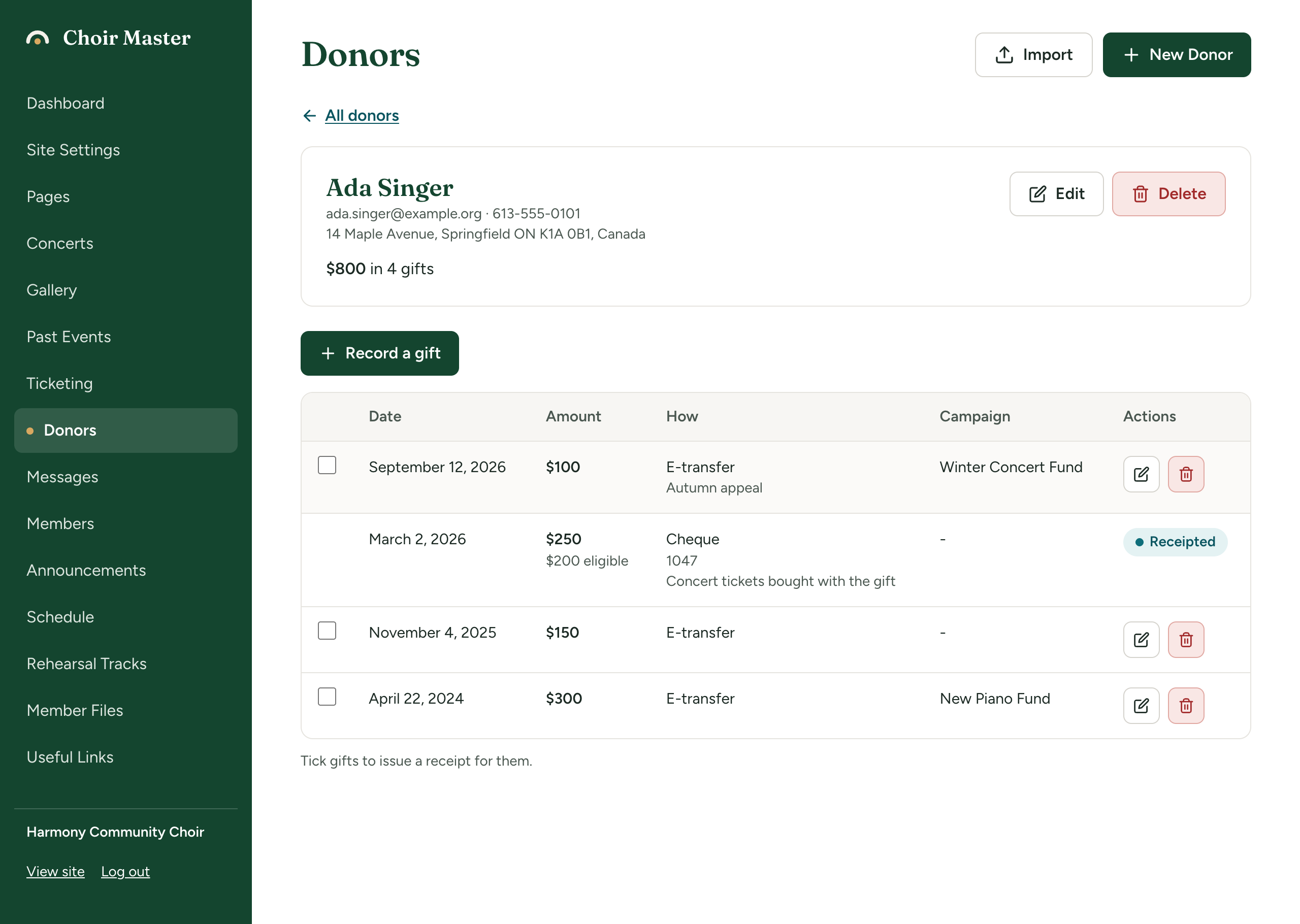
The page shows:
- their details, with labels for Does not want to be named, Do not send appeals and Archived where they apply;
- the total they have given and the number of gifts, for example "$350 in 3 gifts". Money that was refunded is left out;
- Edit and Delete;
- Record a gift;
- every gift they have made, newest first, with tick boxes for issuing a receipt. See Issue receipts.
Change a donor's details
- Open the donor's page and press Edit.
- Change what you need.
- Press Save Changes.
Receipts already issued keep the name and address they were issued with. To give a donor a corrected receipt, see Replace a receipt.
Archive a donor
Archive someone who no longer gives but whose gifts you need to keep.
- Open the donor's page and press Edit.
- Tick Archived (no longer giving).
- Press Save Changes.
An archived donor:
- is hidden from the list, and not counted in the number on the Donors tab;
- is left out of every message you send from the Mail tab;
- is not offered when you record a gift from the Gifts tab;
- keeps all their gifts and receipts, which still count in your totals.
To see archived donors, press Show archived donors under the list. To bring one back, edit them and untick the box.
Delete a donor
Open the donor's page, press Delete, then Delete again to confirm.
A donor who has any gift on record cannot be deleted. You are told "This donor has gifts on record, so cannot be deleted. Archive them instead." This is deliberate: the gifts are your choir's record of its income.
If something goes wrong
| Message | What to do |
|---|---|
| "A name is needed" | Fill in Name, or for an organisation, Organisation. |
| "That email address does not look right" | Correct the address, or clear it. |
| "That donor is not on the list any more" | Another admin deleted them. Reload the page. |