Import donors and past gifts
If your donors and gifts are already in a spreadsheet, you can bring them in instead of typing each one. You do this once when you start keeping donor records, or whenever you have a batch to add. Any admin can import.
Import donors first, then gifts, because every gift belongs to a donor. A gift can also add its donor for you (see below), so a simple list of gifts alone will do.
Before you start
- The first row of your spreadsheet must be headings (Name, Email, Amount and so on). Headings can be in any order.
- Save the sheet as a
.csvfile, or copy the rows (headings too) straight out of Excel or Google Sheets. - Both commas and semicolons between columns work, and so do the tabs you get when you copy cells out of a spreadsheet.
- At most 500 rows at a time. For a longer list, import it in parts. If you go over, the page says "Too many rows: 612. Import at most 500 at a time."
- Nothing is saved until you press Import. The check before it changes nothing.
Import donors
- In the admin panel, open Donors.
- Press Import at the top of the page. A box called Import from a spreadsheet opens.
- Leave Donors chosen.
- Paste your rows into the box, or press Choose a file and pick a
.csv,.tsvor.txtfile. - Press Check the list.
- Read the result (below). When it looks right, press Import followed by the number, for example Import 42.
- The box says, for example, "42 donors added." Press Done.
Headings for donors
Use the headings below, or one of the other names given. Capital letters do not matter. A heading the page does not know is ignored.
| Column | Headings it understands |
|---|---|
| Name | Name, Full name, Donor, Donor name |
| First and last name | First name, First, Given name, and Last name, Last, Surname, Family name |
| Organisation | Organisation, Organization, Company, Business |
| Email, E-mail, Email address | |
| Phone | Phone, Phone number, Telephone, Mobile, Cell |
| Address | Address, Address 1, Address line 1, Street, Street address, Mailing address |
| Address, second line | Address 2, Address line 2, Unit, Apartment, Suite |
| City or town | City, Town |
| Province or state | Province, State, Region, Province or state, County |
| Postal code | Postal code, Postcode, Zip, Zip code |
| Country | Country |
| Notes | Notes, Note, Comments |
You need a name: a Name column, or First name and Last name, or an Organisation column. A row with only an organisation is added as an organisation. If a heading is missing you are told, for example "The headings need a column for the name (Name, or First name and Last name, or Organisation). The headings found were: ...".
A complete list of headings for imports is also in Spreadsheet columns for imports and downloads.
A small example
Name,Email,Phone,Address,City,Province,Postal code
Ada Singer,ada@example.org,705-555-0100,1 Main Street,Barrie,ON,L4M 1A1
Bob Baritone,bob@example.org,,22 Mill Road,Orillia,ON,L3V 2B2
What the check tells you
Each row gets one of these results.
| Result | Meaning |
|---|---|
| Will be added | The donor is new. |
| Already a donor | Someone with that email address is already a donor. They are left as they are, not changed. |
| Same address as an earlier row | Two rows in your list have the same email address. Only the first is used. |
| A message about the row | The row cannot be used, for example "A name is needed" or "That email address does not look right". |
The sentence above the table tells you the totals, for example "42 will be added; 3 will be left out. Nothing has been saved yet." If nothing can be added, the Import button cannot be pressed. Press Back to change the list.
Import never changes a donor who is already on file. To correct one, open their page and press Edit. See Add and look after donors.
Import past gifts
- Open Donors, then press Import.
- Choose Gifts.
- Paste the rows or choose a file, as above.
- Press Check the list, then Import and the number.
The result reads, for example, "120 gifts added, with 8 new donors." and, if some were refused, "3 rows were left out."
Headings for gifts
| Column | Headings it understands | Needed? |
|---|---|---|
| Donor's name | Name, Full name, Donor, Donor name | Name or Email |
| Donor's email | Email, E-mail, Email address | Name or Email |
| Amount | Amount, Gift, Donation, Value, Total | Yes |
| Date | Date, Received, Date received, Gift date, Donation date | Yes |
| How it was given | Method, Paid by, Payment method, Type | No |
| Campaign | Campaign, Fund, Appeal | No |
| Reference | Reference, Ref, Cheque number, Check number, Cheque #, Check # | No |
| Notes | Notes, Note, Comments | No |
Name,Email,Amount,Date,Method,Campaign,Reference
Ada Singer,ada@example.org,250.00,2026-03-15,Cheque,Tour fund,1042
Carol Contralto,,1250.00,15 March 2026,E-transfer,,
How each row is read
- The donor. The row names its donor by email address first, then by name. Someone not yet a donor is added, provided the row has a name. If a row has only an email address that no donor has, you are told "No donor has that email address, and there is no name to add one with". A row with neither is refused with "No donor named".
- The amount. Numbers such as 50, 1,250.00 or $25. Anything else is refused: "Enter the amount as a number, such as 50 or 1,250.00".
- The date. Write it as
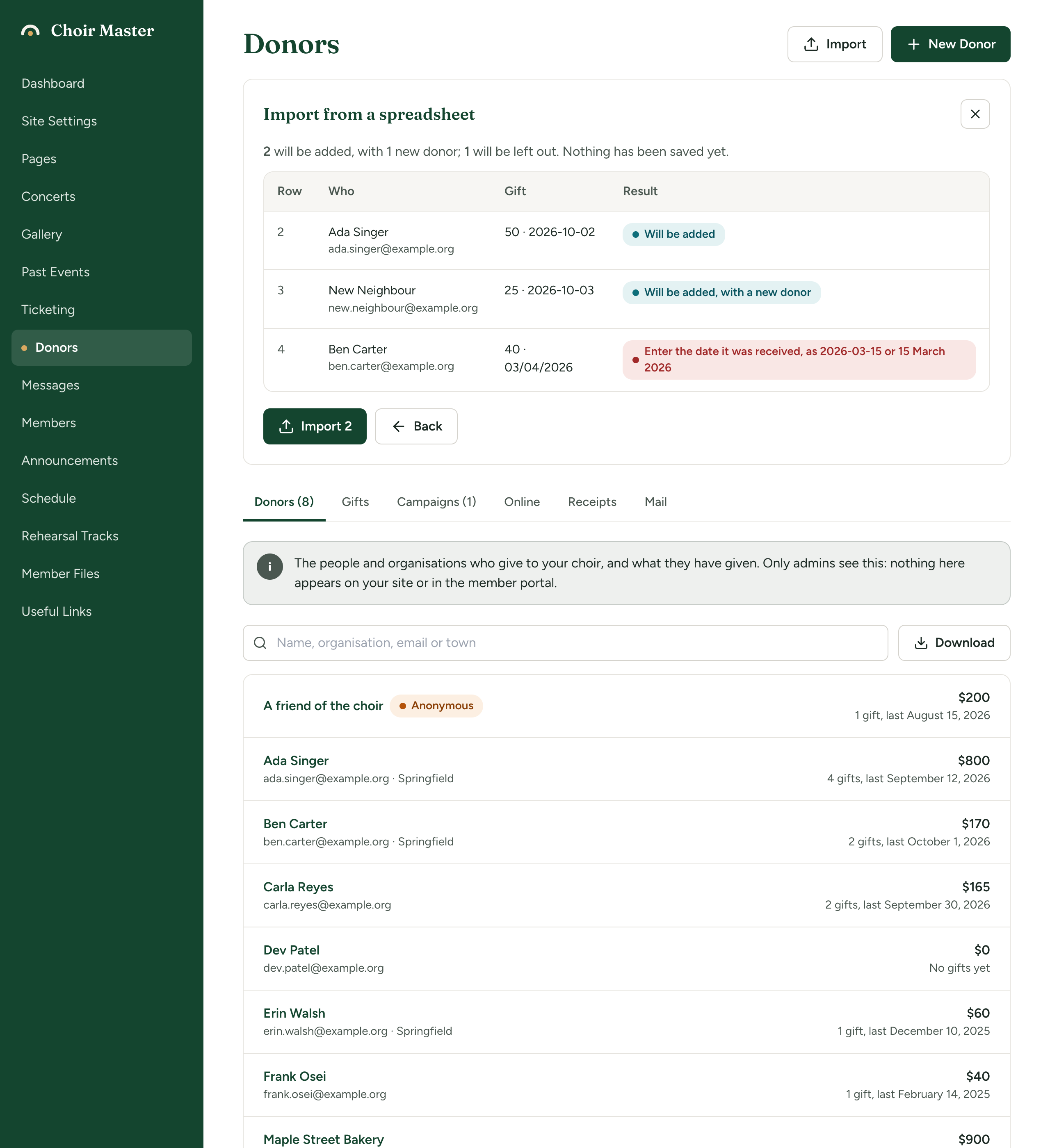
2026-03-15,2026/03/15or with the month in words, such as15 March 2026orMar 15, 2026. A date written only in figures, such as03/04/2026, is refused, because it means the 3rd of April to some people and the 4th of March to others. In a spreadsheet, format the date column as text or asyyyy-mm-ddbefore you copy it. The message is "Enter the date it was received, as 2026-03-15 or 15 March 2026". - The method. The usual words are understood: Cash, Cheque (or Check), E-transfer (or Interac), Card (or Visa, Mastercard), In kind, Other. Anything else becomes Other. An empty cell leaves it empty.
- The campaign. It must match the name of a campaign you have already made, with capital letters ignored. Otherwise the row is refused: "There is no campaign called ...". Create the campaign first. See Run a campaign.
- Receipts. Imported gifts are marked as able to have a receipt, for the whole amount, and are recorded in your site's currency.
Results for gifts
| Result | Meaning |
|---|---|
| Will be added | The gift will be recorded for an existing donor. |
| Will be added, with a new donor | A new donor will be added as well. |
| A message about the row | The row is refused, for one of the reasons above. |
If something goes wrong
| Message | What to do |
|---|---|
| "Paste the donors with a row of headings first, then one row each." | Your list needs a row of headings and at least one more row. The same for gifts. |
| "The headings need a column for ..." | Rename a heading to one of the names in the tables, or add the missing column. |
| "Could not read that file. Try pasting the list instead." | Open the file in a spreadsheet, copy the cells and paste them in. |
| "Too many rows" | Split the list into parts of 500 or fewer. |
| "Something went wrong importing the donors. Nothing was changed." | Try again. If it keeps happening, your server's log has the detail. |