Run a campaign
A campaign is something gifts are given to: a tour fund, an annual appeal, a new set of risers. It lets you see how much one appeal has raised. Gifts do not need a campaign, so use them only where they help. Any admin can set them up.
Add a campaign
- In the admin panel, open Donors, then the Campaigns tab.
- Press New campaign.
- Fill in the form. Only the name is required.
- Press Save.
| Field | What it is for | If left empty |
|---|---|---|
| Name | What the campaign is called, such as "Tour fund". Up to 200 characters. | Cannot be empty |
| Goal | The amount you hope to raise, as a number. | No goal, and no progress bar |
| Starts | The day it begins. | No start date is shown |
| Ends | The day it finishes. | No end date |
| What it is for | A sentence shown on the campaign's card in the admin panel. Up to 1,000 characters. | Nothing is shown |
| Archived (finished) | Shown only when you edit a campaign. See When a campaign is finished. |
The dates are for your information, with one exception: Ends decides when the campaign stops being offered on your online giving form. They do not stop you recording a gift to the campaign on any date.
Give a gift to a campaign
When you record a gift, choose the campaign under Campaign. To move a gift to a campaign afterwards, edit the gift.
Read a campaign's card
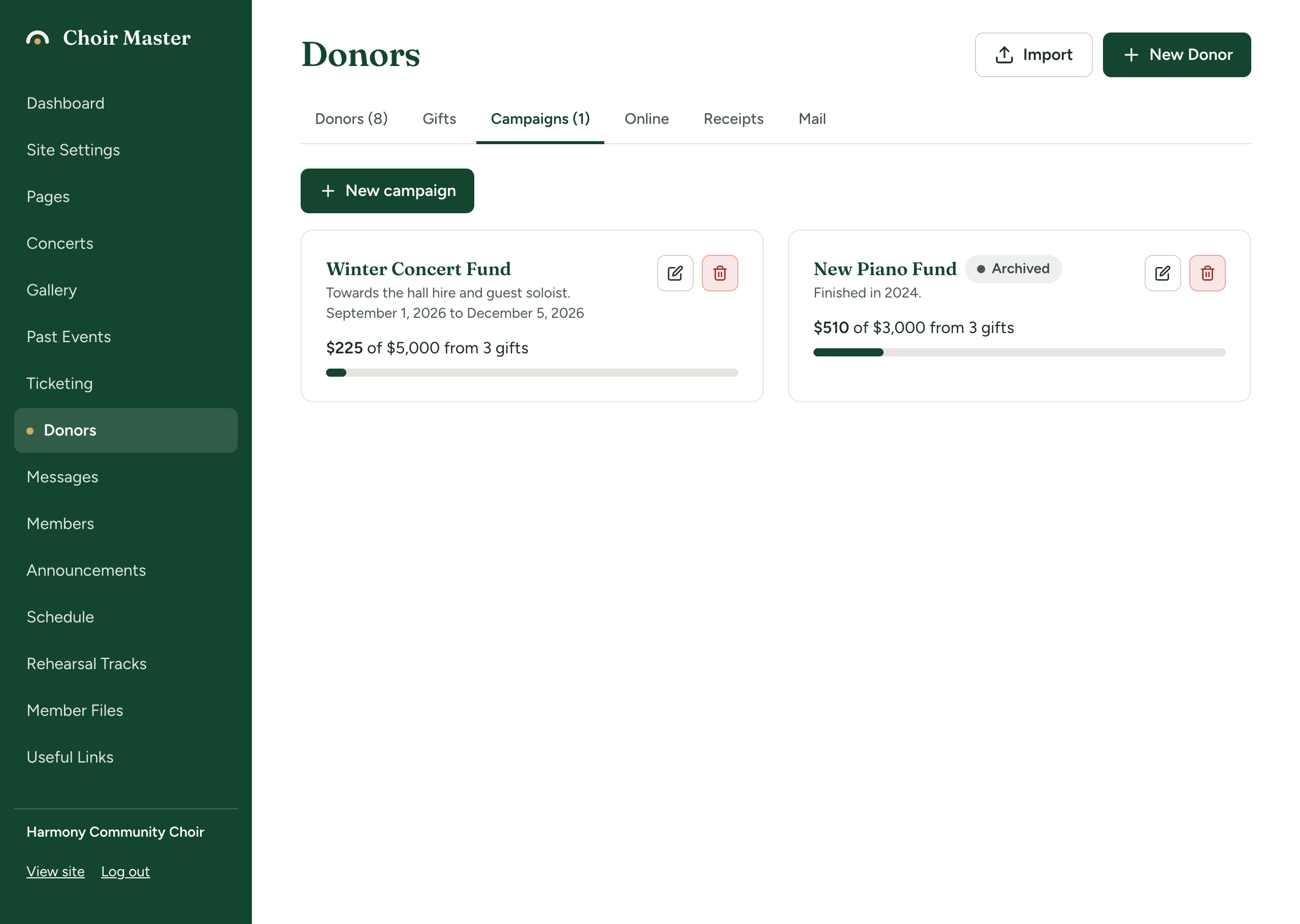
Each campaign has a card showing:
- its name, what it is for and its dates;
- how much it has raised, for example "$4,200 of $10,000 from 31 gifts";
- a progress bar, if it has a goal. The bar stops at 100% when the goal is passed.
Money that was refunded is left out. A gift given online and refunded in full does not count towards the amount raised or the number of gifts. A gift refunded in part counts for what your choir kept.
Campaigns on your online giving form
If people can give by card on your Donate page, the form offers a Give to (optional) list of your campaigns, with "Where it is needed most" as the first choice.
A campaign is offered there when it is not archived and its Ends date has not passed. It is offered until the end of its last day where your choir is. The Starts date is not checked, so a campaign that has not started yet is offered too: add it when you are ready for people to give to it.
Visitors see only the campaign's name. See Take gifts by card on your Donate page.
Change a campaign
Press the pencil on its card, change what you need, and press Save.
When a campaign is finished
- Press the pencil on the campaign's card.
- Tick Archived (finished).
- Press Save.
An archived campaign:
- stays on the Campaigns tab, greyed and labelled Archived, with its total;
- is no longer offered when you record a gift, or on the online giving form;
- is not counted in the number on the Campaigns tab;
- can still be chosen when you email donors who gave to it.
Delete a campaign
Press the bin on its card, then Delete.
A campaign that any gift has been given to cannot be deleted. You are told "Gifts have been given to this campaign, so it cannot be deleted. Archive it instead."
If something goes wrong
| Message | What to do |
|---|---|
| "The campaign needs a name" | Fill in Name. |
| "Enter the goal as a number, or leave it empty" | Type the goal with no words, such as 10000. |
| "The campaign cannot end before it starts" | Check Starts and Ends. |
| "That campaign is not on the list any more" | Another admin deleted it. Reload the page. |