Your licence key
Every self-hosted site needs a licence key, including the free Community edition. The key does one practical job: it lets your site ask the release server whether a newer version exists and download it. This page is for whoever runs the server.
What one key covers
A key is for one website. The licence terms define a website as one domain name, with or without www., plus copies on local or private machines used only to build or test that website.
| Case | Counts as |
|---|---|
choir.example.org and www.choir.example.org | The same website. |
choir.example.org and news.choir.example.org | Two websites. Each subdomain needs its own key. |
A copy on your laptop (localhost), or on a private network address, used to build or try the site | Allowed under the same key. |
| A web designer installing a site for a client | Allowed, provided the client holds the key for their own website. |
You get a key from your account on the Choir Master CMS site. The page asks which website the key is for, and shows the key once, so copy it then. See Get a licence key and the download.
Set the key on your server
The setting is called LICENSE_KEY, spelled with an "s" because setting names are fixed.
| Platform | How to set it |
|---|---|
| Plain Node | LICENSE_KEY=... in the environment of the process, for example in the file you pass with node --env-file=choirmaster.env server/launcher.js, or an Environment= or EnvironmentFile= line in a systemd unit. See Give the server its settings. |
| Docker Compose | LICENSE_KEY=... in the .env file next to the compose file. Both compose files read it through env_file. |
| Cloudflare Workers | A secret, so the key is not stored in wrangler.toml: npx wrangler secret put LICENSE_KEY |
| A secrets manager or a file | Any of the usual ways work: LICENSE_KEY_FILE=/run/secrets/licence_key, or a secrets manager. |
Leading and trailing spaces are removed. Restart the server (or run npx wrangler deploy after setting a Cloudflare secret) and open the Updates page: log in to the admin panel and use the Version link on the dashboard, or go to /admin/updates. Last checked should show a date and time.
Without a key
A site without a key still runs. Nothing in the software stops working. What the site cannot do is check for updates or download them, and it never contacts the release server.
npm run config:checkand the start-up log say:LICENSE_KEY is not set: the admin panel cannot tell you when a new version is available. (WithUPDATE_MODE=offthis warning is left out.)- The Updates page says: "This site is not checking for updates because it has no licence key. Set
LICENSE_KEYon the server to be told here when a new version is available."
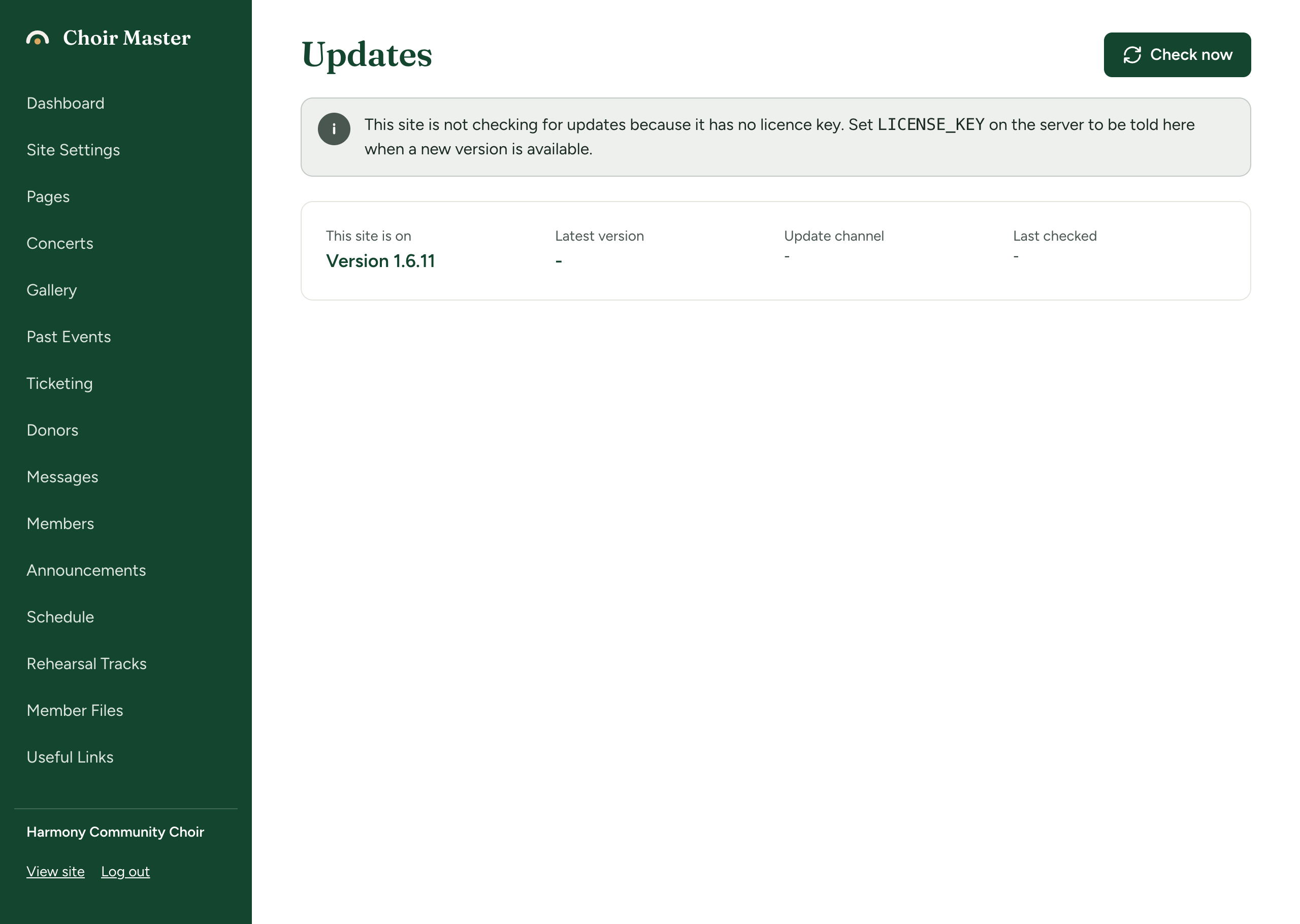
The licence terms still require a key before you use the software, even if the program does not enforce it. A site that never checks for updates is also treated as the Community edition (see Community and Standard editions).
How a key is tied to its website
Each update check carries the host name from your SITE_URL (only the host name, for example choir.example.org, never a path). The release server uses it like this:
- A key that was issued for a named website is held to that website. A key with no website yet takes the first public host name it is seen on.
- After that, a check that comes from a different website is refused.
- The server ignores
www., the port number and capital letters when comparing. - Host names that can only be somebody's own machine or network are always let through and never count as a different website: a name with no dot (
localhost,choirpi), a name ending.localhost,.local,.test,.internal,.lanor.home.arpa, and the private address ranges10.x.x.x,127.x.x.x,172.16.x.xto172.31.x.xand192.168.x.x.
A refused check shows this on the Updates page:
The last check for updates did not work: This licence key is registered to another website. Each key is for one website; contact support to move it.
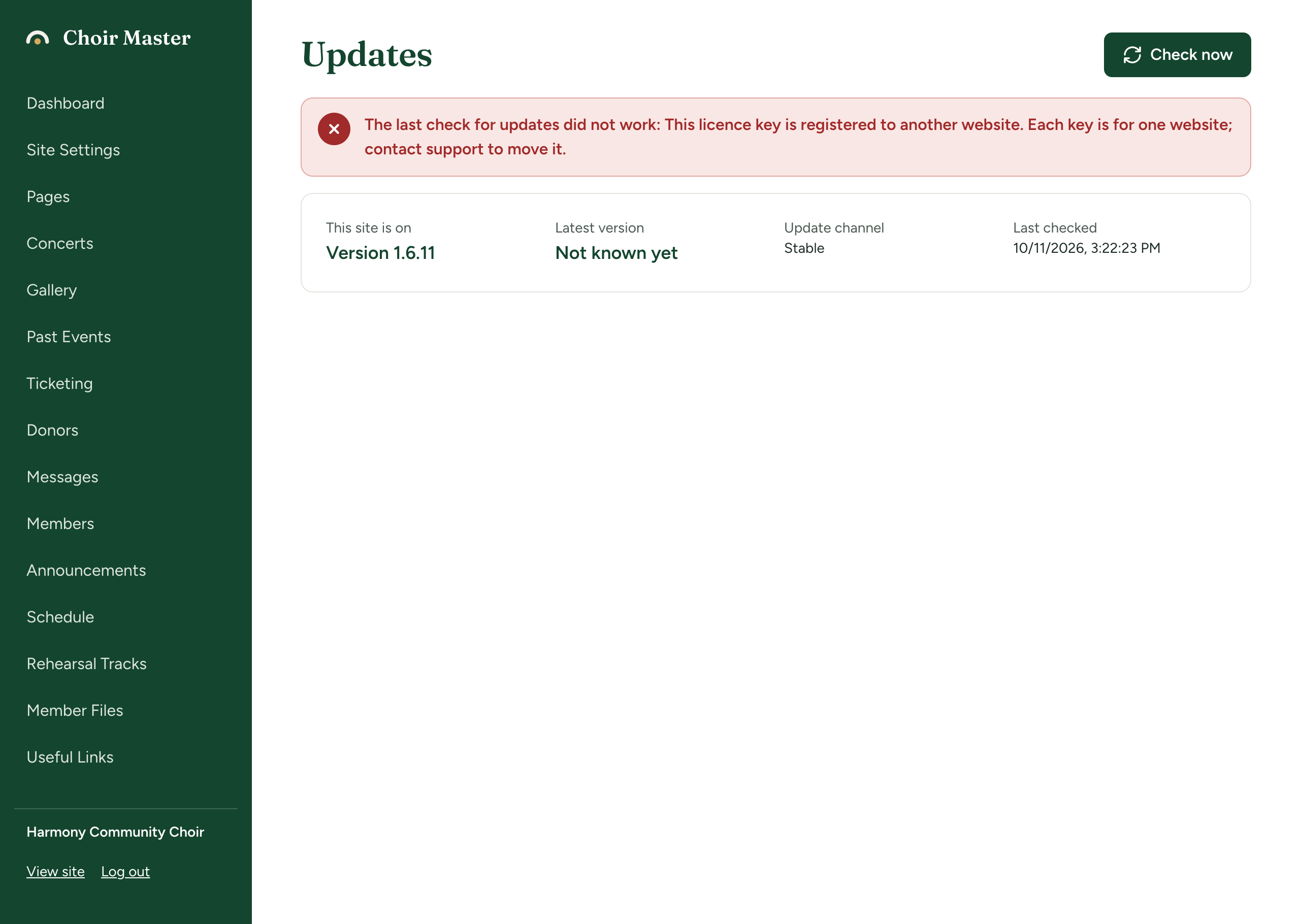
Two things to know:
- If
SITE_URLis not set, the site does not send a host name and is not held to any website. SetSITE_URLanyway: emailed links need it. - The key is checked only when the site looks for updates. A refused check does not take the site down.
Moving a key or replacing a lost one
Both are done by writing to support@choirmastercms.com. There is no button for it in the software.
- Moving a key to a new domain: tell support the new website. The original website must stop using the key. A Standard edition licence may be moved to a different domain by notifying us, as long as the old site stops using it.
- A lost key: the release server keeps only a fingerprint of each key (a SHA-256 hash), so it cannot show you the key again. Support issues a replacement.
If you are moving the site to a new server but keeping the same domain, you do not need to move the key. Set the same LICENSE_KEY and SITE_URL on the new server. See Restore a backup, or move to a new server.
What is sent to the release server
An update check is one request to the address in UPDATE_URL (default https://updates.choirmastercms.com). It is made only when an Admin or Site Admin opens the dashboard or the Updates page, and at most once every twelve hours unless Check now is pressed. See How updates work.
| Sent | Why |
|---|---|
The licence key, in an Authorization header | To identify the licence. |
| The version the site is running | To work out what is newer. |
The platform: node or cloudflare | So the answer matches how the site can be updated. |
The host name from SITE_URL | So the key can be held to one website. |
The update channel, only if you set UPDATE_CHANNEL | See Beta versions and update channels. |
The release server also sees the IP address the request comes from, as any server does. It records the version, platform, host name and address of the latest check against your licence. A download of a release sends the licence key and the version wanted.
Not sent: anything about your members, donors, ticket buyers, messages, settings or content, and no data from your database.
Downloaded code is never run on trust. The signature and checksum of every release are checked on your server first: see When an update fails.