When an update fails
An update can stop at several points, and nearly all of them leave the site exactly as it was. This page explains how a downloaded release is checked before anything runs, the order of the install, what each error message means, and what to do if a new version starts but behaves badly. It is for whoever runs the server. It applies to one-click updates (UPDATE_MODE=self).
How the download is verified
Nothing downloaded runs until it has passed two checks on your own server. The release server cannot bypass them, because the key they depend on is built into the site's code.
- Checksum. The site works out the SHA-256 of the file it received and compares it with the one the release server announced. A mismatch means the file was damaged on the way.
- Signature. Every release is signed with an Ed25519 key held by the publisher. The signature covers the version number and the checksum together (
choirmaster-cms, the version, the SHA-256), so an old genuine release cannot be passed off as a newer one. The site checks it against the public key inserver/adapters/updates/release-key.js. A release that fails is thrown away. - Unpacking. The archive is read in full before a single file is written. It may hold only ordinary files and folders, with relative paths that stay inside the target. Links, devices, absolute paths, paths containing
..or a backslash, more than 50,000 entries or more than 500 MB make the whole archive unacceptable.
What the installer does, in order
When an admin presses Update now:
- It asks the release server afresh for the latest version. If that fails, it stops.
- It stops if the site is already on the latest version.
- It downloads the release (up to five minutes).
- It checks the checksum, then the signature.
- It unpacks the release into a staging folder next to its final place, checks that the
package.jsoninside names the right version and has a server, then moves it intoDATA_DIR/releases/<version>/. - With a SQLite database, it makes a copy of the database in
DATA_DIR/backups/, namedbefore-<version>-<date and time>.sqlite. The three newest copies are kept. If the copy cannot be made, the update is abandoned. - It records the release as pending in
DATA_DIR/releases/state.json, and about half a second later asks the server to shut down and be restarted. The admin page is told the update is on its way and starts watching. - The launcher starts the new version and waits up to 90 seconds for
GET /api/healthto report that exact version. If it does, the new version is kept. If it does not, the launcher stops it, deletes the release, starts the version that was running before, and records why for the admin panel.
PostgreSQL and MySQL are not backed up by an update. Schema changes only add tables and indexes, so the previous version keeps working after a roll-back, but making copies of those databases is yours to do: see Back up PostgreSQL, MySQL, S3 storage and Cloudflare.
Error messages
These appear in a red message at the top of the Updates page. Each line that ends "Nothing was changed" means just that: the site is still running the version it was.
| Message | What it means and what to do |
|---|---|
| An update is already being installed. | Someone else pressed the button a moment ago. Wait and reload. |
| LICENSE_KEY is not set, so this site cannot download updates. | See Your licence key. |
| This site is already on the latest version. | Nothing to install. Press Check now and reload. |
| This site cannot update itself. Follow the update steps for how it is hosted. | The site is not in self mode. Use Update by hand. |
| Version X could not be downloaded. Nothing was changed. | The release server did not send the file, or the connection broke. Try again. The server log has a line starting Update download failed: with the cause. |
| The download was damaged on the way (its checksum is wrong). Nothing was changed; try again. | The checksum check failed. Try again; if it repeats, a proxy may be altering downloads. |
| The download is not signed by the Choir Master release key, so it was not installed. Nothing was changed. | The signature check failed. Do not try to get round it. Write to support. |
| Version X could not be unpacked (reason). Nothing was changed. | The reason is one of: "Unacceptable path in the archive", "Absolute path in the archive", "Path leaves the archive", "The archive holds something other than files and folders", "The archive holds too many files.", "The archive is too large.", "The archive is cut short.", "the bundle says it is Y" (the file inside names a different version), "the bundle has no server in it". A full disk or a folder the server cannot write to (DATA_DIR) also lands here. The log has Update unpack failed:. |
| The database could not be backed up, so the update was not installed. Nothing was changed. | The SQLite copy failed, usually for lack of space or permission in DATA_DIR/backups. The log has Database backup failed:. |
| The update could not be installed. Nothing was changed. | Something unexpected. The log has Error installing update:. |
When the install itself went through but the new version did not come up, the page shows one of these instead, and the site is back on the old version:
Version X was installed but it stopped while starting (exit code N), so the site went back to the version it was on.
Version X was installed but it did not answer its health check within 90 seconds, so the site went back to the version it was on.
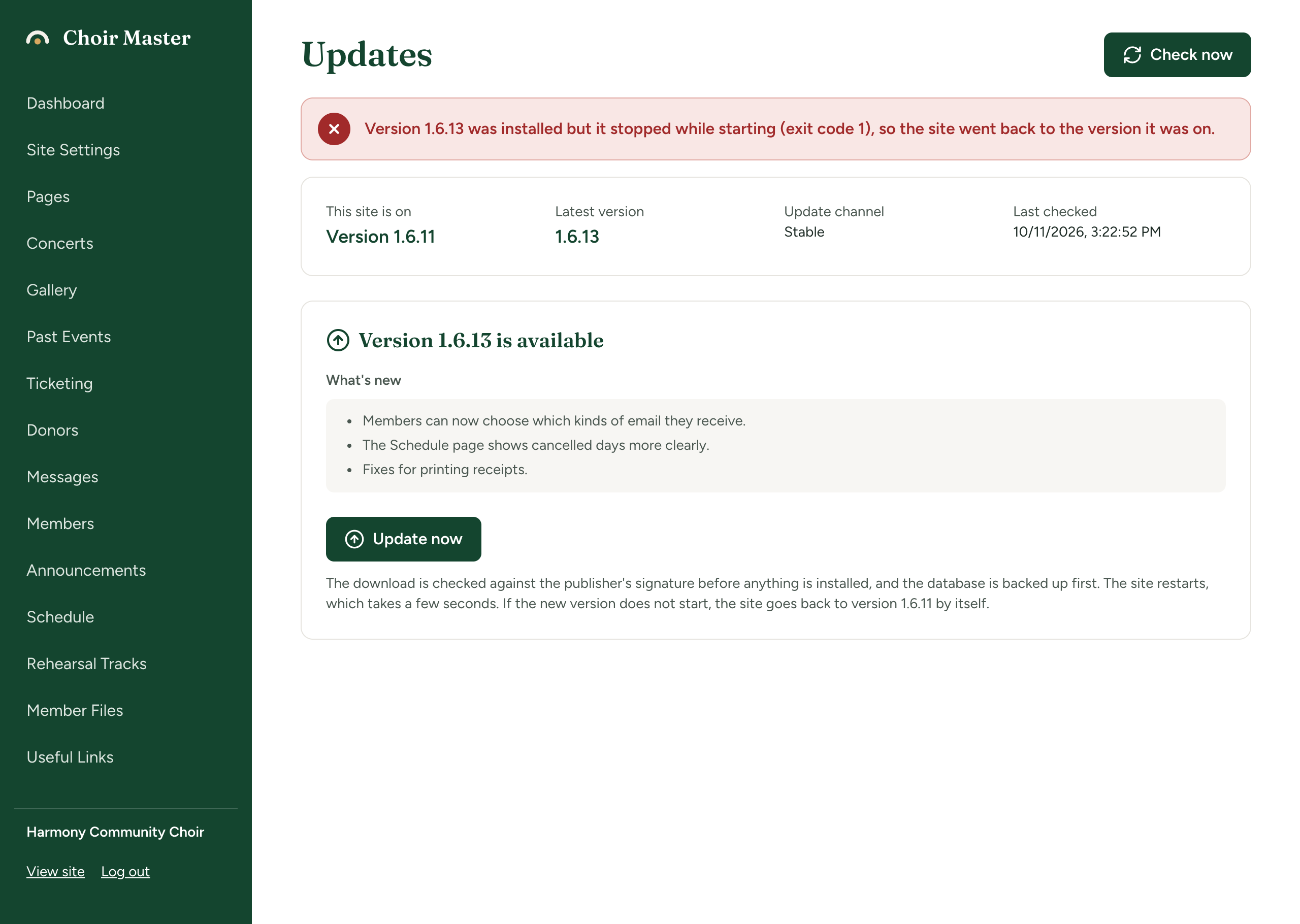
The launcher's own line in the server log is [launcher] release X failed: ... Going back to the previous version. If the downloaded release is missing or is no newer than the installed code, the message is "The downloaded release was missing or no newer than the installed version."
Common causes of a failed start are a setting that the new version reports as fatal (the log names the variable), a database user that cannot create tables, or a PORT that the launcher does not know about (see How updates work). Read the log from the time of the update: Logs and health checks.
If the page cannot tell how the update went, after four minutes it says "The site has not said how the update went. Reload this page in a minute; if the site does not come back, check the server."
The last check for updates did not work
A red message beginning "The last check for updates did not work:" means the site could not ask the release server. The reason follows the colon:
| Reason | What it means |
|---|---|
| The update server could not be reached. | A network problem, a firewall, a wrong UPDATE_URL, or the request took more than eight seconds. The server log has Update check failed: with the cause. The server must be able to make outgoing HTTPS requests. |
| This licence key is registered to another website. Each key is for one website; contact support to move it. | See Your licence key. |
| This licence key is not recognised. | The key is mistyped or is not one the release server issued. Check LICENSE_KEY for spaces or missing characters. |
| This licence key is no longer active. | The licence has been revoked. Write to support. |
| The update server answered N. | The release server refused the request without a message of its own (N is the HTTP status). Try again later, and write to support if it continues. |
| The update server sent an answer this version does not understand. | The release server's reply was in an unexpected form. Try again later. |
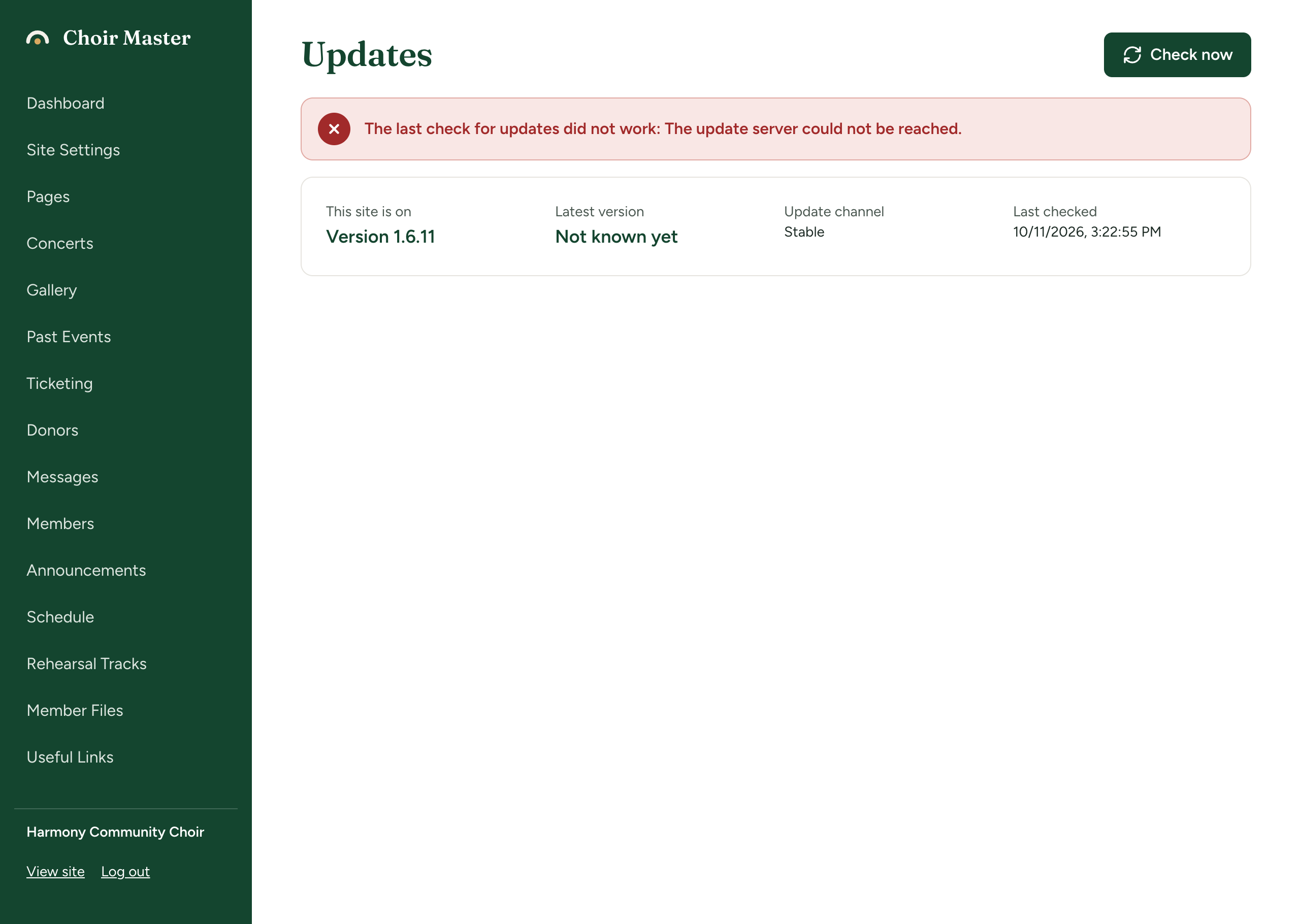
A failed check does not erase what was known: the last known latest version and edition stay in place.
A version that starts and then misbehaves
Going back is automatic only for starting up. If a new version starts, reports healthy and then fails later, the launcher does not undo it. If the process crashes, the launcher exits and whatever supervises it (Docker's restart policy, systemd) starts the same version again.
To return to the code the site was installed with:
- Stop the site.
- Delete the
releasesfolder inDATA_DIR. This removes the downloaded versions andstate.json. - Start the site. It runs the installed code again.
On Docker the same is docker compose exec app rm -rf /app/data/releases and then docker compose restart app.
If the new version changed your data and you need it as it was, restore the copy made before the update: SQLite sites have it in DATA_DIR/backups/. See Restore a backup, or move to a new server. A restore throws away everything entered since the update.
Then wait for a corrected release. A published version is never replaced; a bad release is withdrawn and a new version published.
Write to support@choirmastercms.com with the version numbers and the relevant log lines if a release fails on your site and you think the release itself is at fault.