Update your site with one click
When a new version of Choir Master CMS comes out, your site can tell you and, on most self-hosted set-ups, install it for you. This page is for the choir's Site Admin or Admin. Managers cannot see the Updates page. Updating takes a minute or two and the site is unavailable for a few seconds.
Before you start, make sure someone has a recent backup of the site. If you are not sure who does, ask whoever runs the server: What to back up explains what is needed. On a site that uses the built-in SQLite database, a copy of the database is also made automatically before each update, but it is not a substitute. Other databases are not copied.
Find out whether there is an update
- Log in to the admin panel.
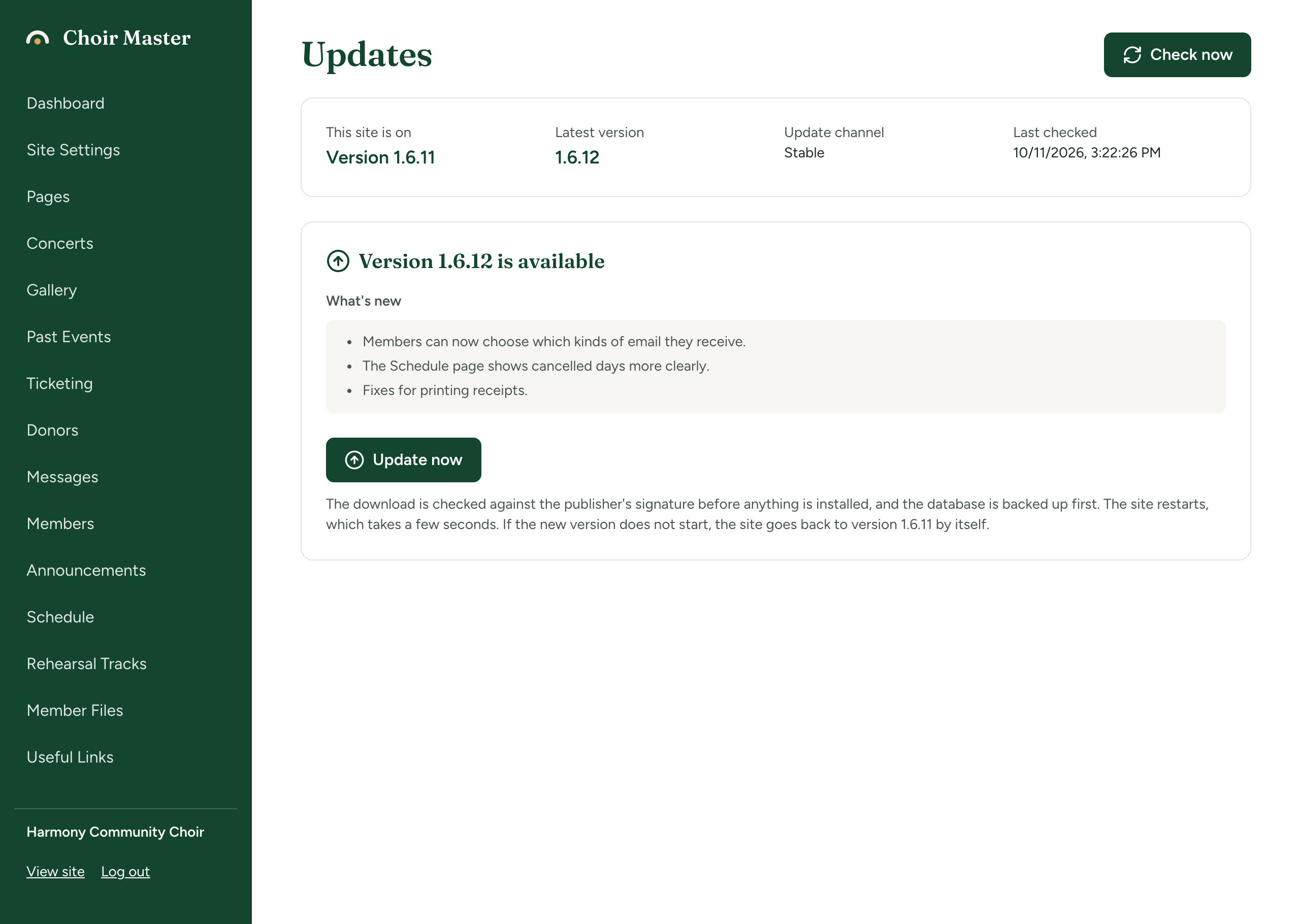
- On the dashboard, look for a box reading Version 1.6.12 is available (with your own version numbers). It has two buttons: What's new and Update now. On a site that cannot update itself, the second button reads How to update instead.
- If there is no box, a small link reading Version 1.6.11 sits just above the tiles. Click it to open the Updates page. You can also go straight to
/admin/updateson your site.
On the Updates page, the panel at the top says:
| Label | What it shows |
|---|---|
| This site is on | The version running now. |
| Latest version | The newest version the site has been told about, or "Not known yet". |
| Update channel | Stable, Beta or Development. See Beta versions and update channels. |
| Last checked | When the site last asked, or "never". |
The site only asks when someone looks, and not more than every twelve hours. To ask now, press Check now (beside the page title). It reads Checking... while it works.
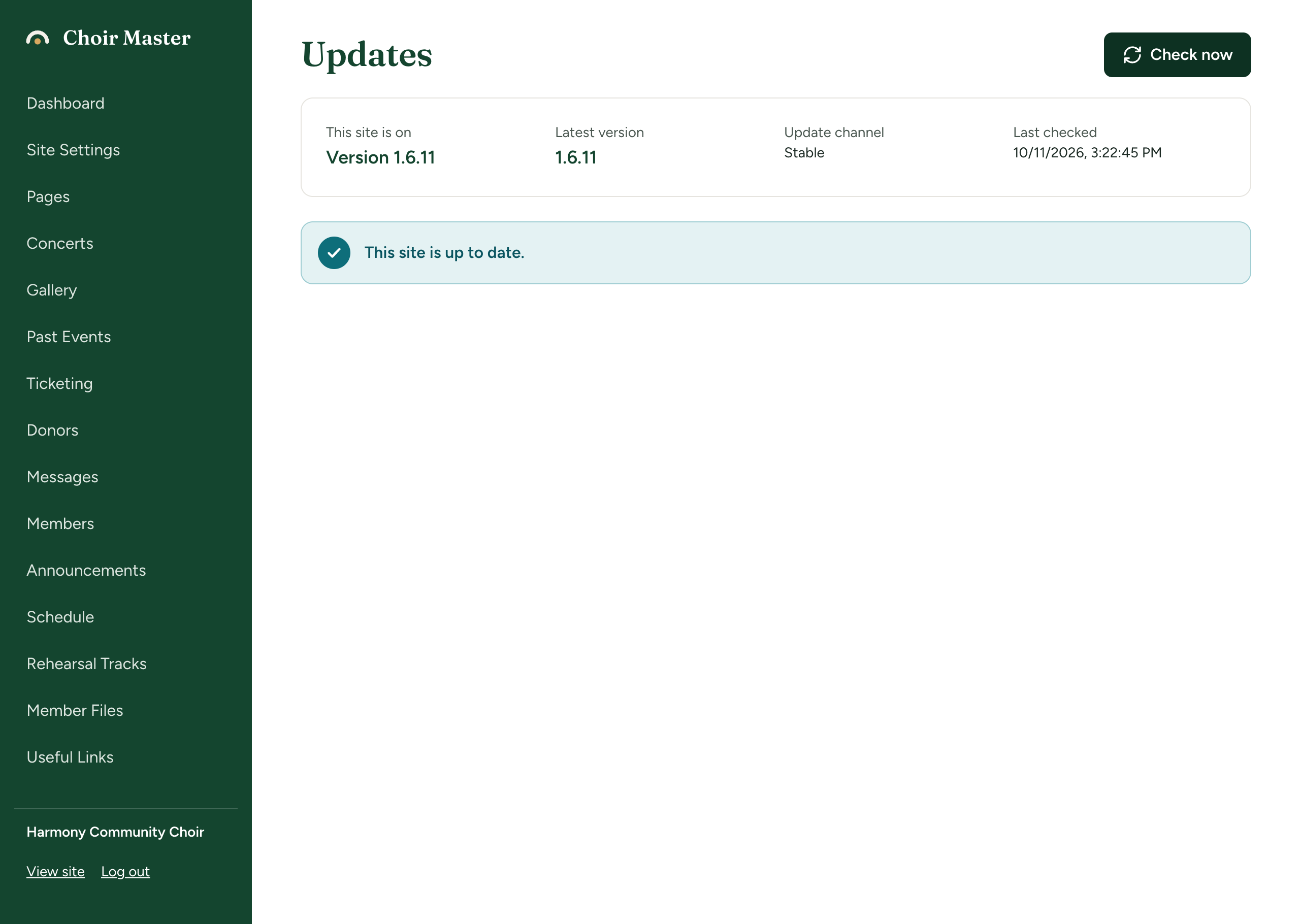
When the site is current, you see a message reading This site is up to date.
Install an update
- On the Updates page, under Version X is available, read What's new. These are the release notes, written for a choir's webmaster. If your site is several versions behind, the notes cover each version it will skip over, newest first.
- Press Update now. Underneath the button a note says: "The download is checked against the publisher's signature before anything is installed, and the database is backed up first. The site restarts, which takes a few seconds. If the new version does not start, the site goes back to version Y by itself."
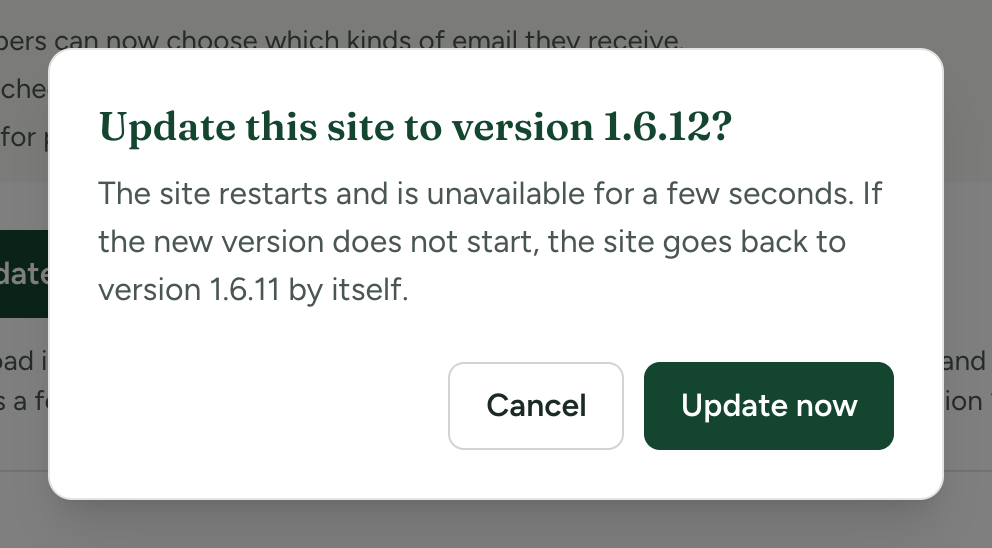
- A question appears: Update this site to version X? It repeats that the site restarts and is unavailable for a few seconds, and that it goes back to the old version by itself if the new one does not start. Press Update now to go ahead, or Cancel.
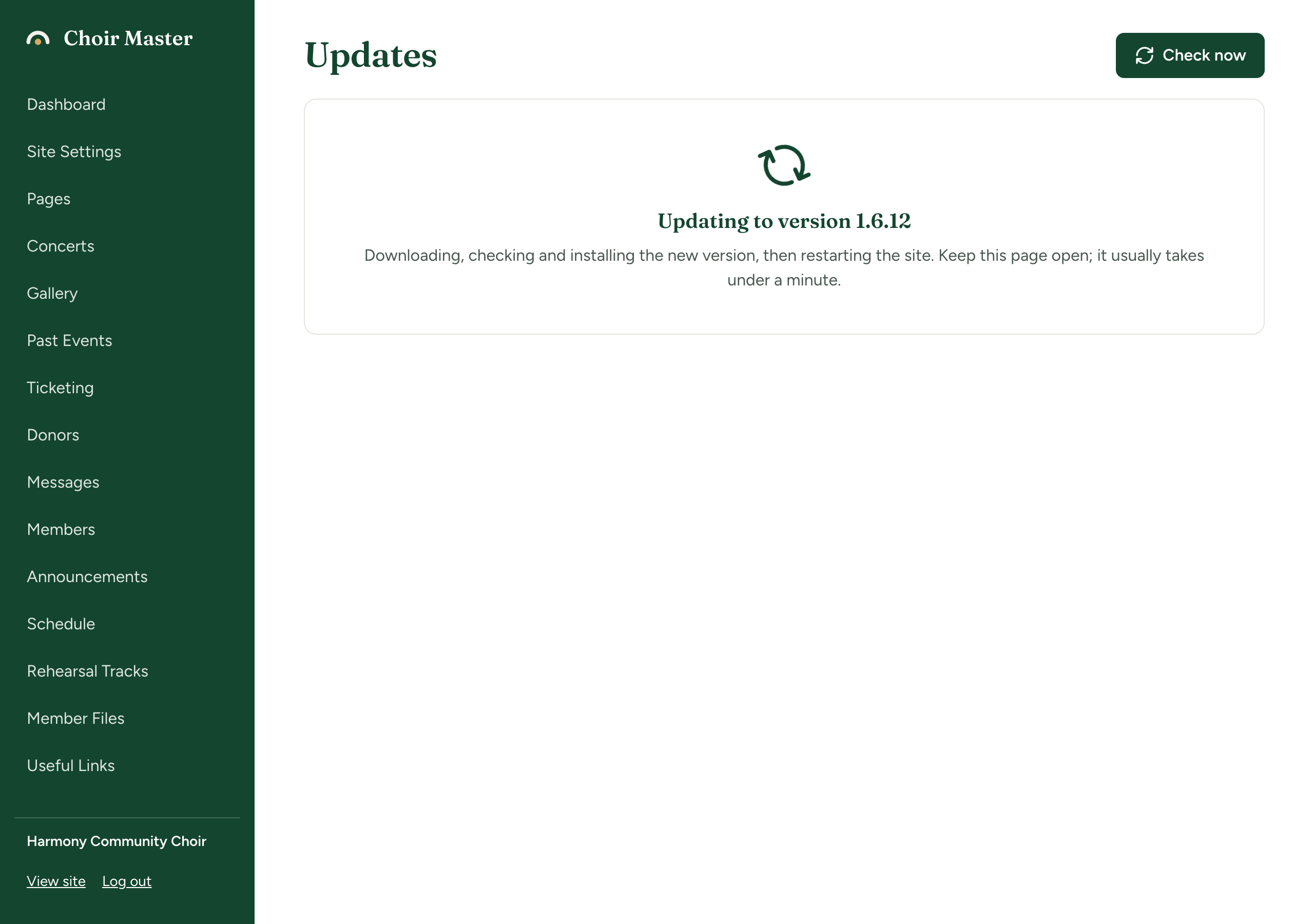
- A screen reads Updating to version X: "Downloading, checking and installing the new version, then restarting the site. Keep this page open; it usually takes under a minute."
- When the new version is running, the Updates page shows a message reading This site is now on version X.
The Update now button on the dashboard takes you to the Updates page and opens the same question for you.
If the screen seems stuck
The page checks every two seconds for how the update went, and it keeps watching for four minutes. While the server restarts, the page cannot reach it. That is expected. If after four minutes it still has no answer, it says:
The site has not said how the update went. Reload this page in a minute; if the site does not come back, check the server.
Reload the page. If the site does not come back, whoever runs the server should look at the log: see Logs and health checks.
If your site was set up to keep logins only in the server's memory (SESSION_STORE=memory, which the person running your server will know about), the restart logs everyone out and you are sent to the login page. Log in again and open the Updates page to see the result.
If something goes wrong
If the update could not be installed, a red message appears at the top of the Updates page with the reason, and the site stays as it was. If the new version was installed but would not start, the site goes back to the version it was on by itself, and the page says so. Every message, and what to do about it, is on When an update fails.
When there is no Update now button
The site cannot update itself
Some sites cannot replace their own code, for example a site on Cloudflare Workers, or one that whoever runs the server has set to only tell you about updates. Instead of the button you see the steps for installing the update by hand, which begin: "This site cannot replace its own code, so the update is installed by whoever looks after the server". The dashboard button reads How to update.
Send the steps to whoever runs the server. They are explained in Update by hand: Node and Cloudflare.
A hosted site
On a site that we host, you will see "Updates for this site are looked after by whoever hosts it." That is us. There is nothing to do, and no licence key is involved.
The site has no licence key
The page says "This site is not checking for updates because it has no licence key." Ask whoever runs the server to set LICENSE_KEY: see Your licence key.
An error about the last check
A red message beginning "The last check for updates did not work" means the site could not ask for updates. The rest of the message says why. See When an update fails.