After installing: first login and go-live checklist
Once the site starts, a few checks make the difference between a site that works and one that fails on the first member login. This page is for whoever installed the server. It takes you through the first login, then gives a go-live checklist, then hands over to the choir's webmaster.
Log in for the first time
- Open
https://choir.example.org/admin/login, using your own address. - Type the Username and Password from
ADMIN_USERNAMEandADMIN_PASSWORD, and select Sign In. - The first time, the site takes you straight to the guided setup, which walks you through the choir's details and the first settings of the site. See Set up your site step by step.
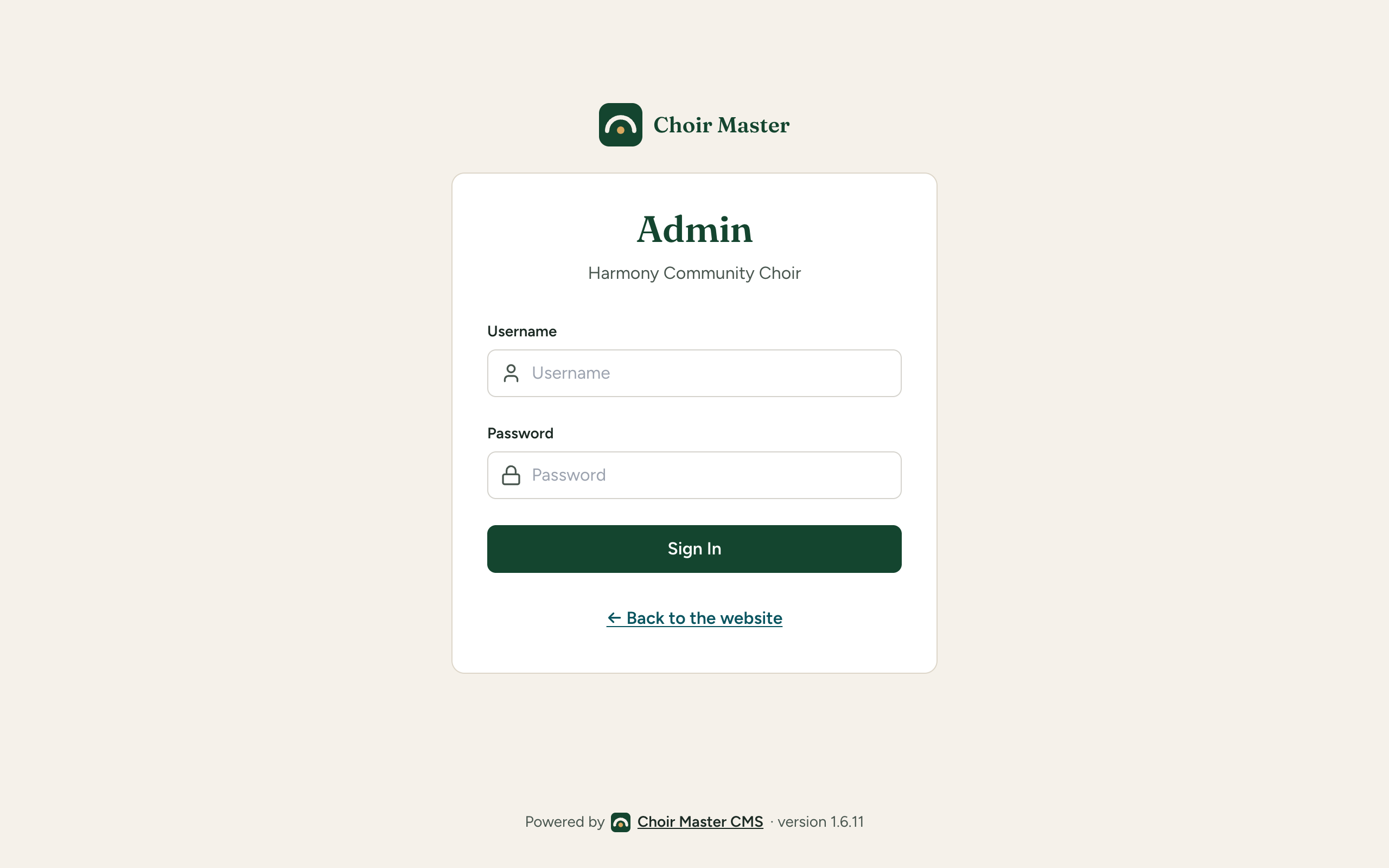
If ADMIN_AUTH is table, the page asks for an Email address and sends a login link instead; the link Use the server's username and password instead is the way in with the two settings. See Admin sign-in and Add the first admin, and get back in when locked out.
If you are sent back to the login page after you sign in, the connection is not HTTPS: see Put it behind HTTPS.
Go-live checklist
Work down the list. Each item says how to check it.
-
SITE_URLis right and HTTPS works.SITE_URLis exactly the address people use, withhttps://. Open it, log in to the admin panel and click around; you must stay logged in. Also open thehttp://andwwwversions and make sure they end at the right address. See Put it behind HTTPS. - The configuration check is clean. On a Node server, run
node --env-file=/etc/choirmaster/env scripts/check-config.js; in Docker,docker compose exec app npm run config:check. It should list no problems. On Cloudflare, read the log withnpx wrangler tailand look for[config]lines. See Check your configuration. - A real email provider works, and you have tested it.
EMAIL_PROVIDERis notlog, andEMAIL_FROMis an address your provider allows. Add yourself as a member (Members in the admin panel), go to/member/loginon the site, enter your address, and check that the login link arrives in your inbox. See Email: what the site sends and how to choose a provider and Sender addresses, sending speed and testing. - The licence key is set and the Updates page checks. Open
/admin/updatesand select Check now. A site with a key says "This site is up to date." or offers a newer version; a site without one says it is not checking because it has no licence key. See Your licence key and How updates work. - Backups are scheduled, and you have restored one. Nothing backs up your site for you. See What to back up and Restore a backup, or move to a new server.
- The admin password is long, or each admin has their own login. The check warns about a password shorter than 12 characters. For several people, give each their own login with
ADMIN_AUTH=table: see Admin sign-in. - A bot check, if you want one. The contact form and ticket orders can be protected. See Stop spam with a bot check.
- Upload limits fit the proxy. Your proxy must accept bodies at least as big as your largest upload limit (100 MB for gallery files by default). See Put it behind HTTPS and Public file addresses and upload limits.
- The monitor watches
/api/health. See Logs and health checks. - You have read Security and know where the logs are.
Hand over to the webmaster
Once the checklist is done, the choir's webmaster does not need this part of the guide. Send them to:
Keep these for yourself: Configure and Operate, and especially Troubleshooting.