Try it on your own computer
A trial run on your own computer shows you the public site, the admin panel and the member portal in about five minutes, with nothing to set up but a short settings file. It is for the person deciding whether and how to install the site. Nothing you do here reaches the internet (apart from an update check, if you give it a licence key), and you can delete the folder afterwards.
You need a licence key and the download (a trial works without a key, but the site then says it cannot check for updates) and Node.js 22.13 or newer. The commands below are for a macOS or Linux terminal.
Start it
-
Unpack the download into a new folder and go into it:
mkdir choir-trialtar -xzf choirmaster-cms-1.6.12.tar.gz -C choir-trialcd choir-trial -
Create a file called
.envin that folder with these lines:NODE_ENV=developmentSITE_URL=http://localhost:3001ADMIN_USERNAME=adminADMIN_PASSWORD=change-me-to-something-longEMAIL_PROVIDER=logEMAIL_FROM=Harmony Community Choir <noreply@example.org># LICENSE_KEY=cmk_your_key_here -
Start the server, reading that file:
node --env-file=.env server/launcher.js -
Open http://localhost:3001 for the site, and http://localhost:3001/admin/login for the admin panel. Log in with the username and password from the file (the form's boxes are Username and Password, and the button is Sign In).
Stop the server with Ctrl+C.
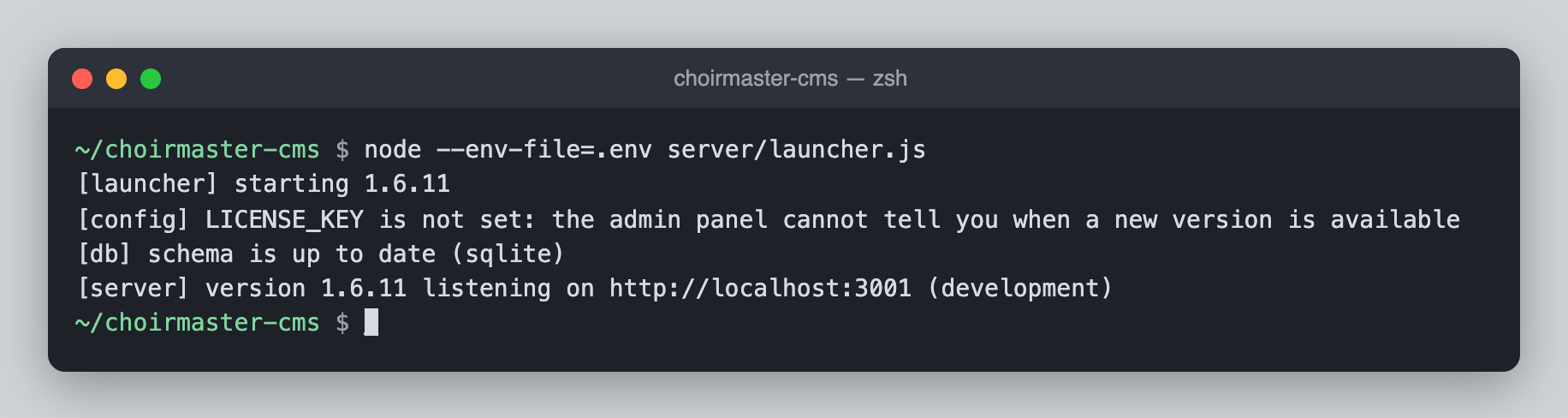
On a first start you see lines like these:
[launcher] starting 1.6.12
[config] LICENSE_KEY is not set: the admin panel cannot tell you when a new version is available
[db] schema is up to date (sqlite)
[server] version 1.6.12 listening on http://localhost:3001 (development)
The database was created for you at data/choir.sqlite, in the folder you started from.
The first time you open the admin panel the site takes you through the guided setup. See Set up your site step by step.
Why NODE_ENV=development
When NODE_ENV is not set, the server assumes production. In production it:
- marks its login cookies
Secure, so the browser drops them overhttp://; - needs
SITE_URLto be set, and builds every emailed link from it.
On your own computer you have no HTTPS, so a trial uses NODE_ENV=development. Never use it on a real site.
Read emails in the terminal
With EMAIL_PROVIDER=log nothing is sent: the server prints each email in the terminal instead, every line starting [email]. This is how you get a login link without an email service.
Add a member in the admin panel (Members, then add one with a real-looking address such as amelia@example.org). Go to http://localhost:3001/member/login, type the address, and look in the terminal:
[email] To: amelia@example.org
[email] Subject: Your Harmony Community Choir login link
[email]   Hi Amelia Hart,
[email]
[email]   Use this link to log in to the Harmony Community Choir Member Portal:
[email]   http://localhost:3001/member/login?token=...
[email]
[email]   It works once and expires in 15 minutes. Open it on the device you want to use the portal on.
Copy the http://localhost:3001/member/login?token=... line into your browser. See Add, change, disable or remove members.
![A terminal showing a block of [email] lines for a member login link, with the link line visible](/img/shots/terminal-email-log.png)
Add sample content
To fill an empty site with sample content, stop the server and run:
node --env-file=.env scripts/seed-demo.js
It adds three concerts, two announcements, a weekly rehearsal and two useful links. You see:
Demo content added.
Run it again and it does nothing:
The database already has concerts; nothing seeded.
It does not add members. npm run db:seed-demo does the same, but npm does not read your .env file, so use the node --env-file form.
Check that it is running
curl http://localhost:3001/api/health
{"status":"ok","platform":"node","version":"1.6.12"}
This address is also what the launcher and your monitoring use to tell whether the site is up.
What a start with no settings does
Start the server with no .env at all and it still starts, with NODE_ENV defaulting to production. It prints these warnings:
[config] SITE_URL is not set: emailed login links need the site address
[config] ADMIN_USERNAME and ADMIN_PASSWORD are not set: nobody can log in to the admin panel
[config] EMAIL_PROVIDER is "log": member login links and contact messages will only be written to the server log
[config] LICENSE_KEY is not set: the admin panel cannot tell you when a new version is available
It then makes a data folder holding a SQLite database and listens on port 3001. Nobody can log in to the admin panel. That is not a usable site, which is why the real installs set the settings every site needs.
If something goes wrong
| What you see | What it means |
|---|---|
| You log in, and the next page sends you back to the login page | You left out NODE_ENV=development, so the cookie is Secure and the browser will not keep it over http://. |
An error containing EADDRINUSE: address already in use :::3001 | Something else is already using port 3001, possibly an earlier copy of this server. Stop it, or add PORT=3002 to .env and use 3002 in the addresses above. |
| Nothing at http://localhost:3001 | The server must still be running in its terminal window. |
Next
When you are ready for a real install, choose Node, Docker or Cloudflare. The settings file you wrote is the start of the one you need; see The settings every site needs.